Category Archives: Product

Breeze Multi-Camera 2.1.4 released

Breeze Multi-Camera 2.1.4 was released today, adding support for four new mirrorless cameras.

High end events to Hollywood blockbusters.

With a proven track record in high end events, blockbuster movies, advertising campaigns and even the National Geographic, Breeze Multi-Camera gives you full creative control with branded overlays, custom screens, green screen support and more.

What’s New in Multi-Camera 2.1.4?

This release adds

  • Support for four new mirrorless cameras: Canon EOS R8, Canon EOS R7,Canon EOS R50 and Canon EOS R100
  •  Run at Start Up option for the Multi-Camera Animator.

Multi-Camera 2.1.4 also fixes  an issue capturing CR3 raw files.

We are switching to a new single price for Multi-Camera upgrades, effective today 9th August 2023. This is a huge price reduction for owners of larger Multi-Camera rigs.

Chris’ comments on the new cameras

The Canon EOS R100 is the best value camera for camera arrays. If you need better image quality from a full frame camera the Canon EOS R8 offers the best value.

Canon EOS R100 camera showing hot shoe with center contacts
Canon EOS R100 – Best value for camera arrays
Canon EOS R8 camera body
Canon EOS R8 – Best value full frame camera

The Canon EOS R50 is fine for product photography, but not suitable for camera arrays because it does not have a remote release socket.

Canon EOS R50 camera showing hot show with no center contacts
Canon EOS R50 – No center contacts on hot shoe

What next..

Learn more about Breeze Multi-Camera software and download a copy of the program to try for yourself.

Breeze Multi-Camera 2.1.4  is a free upgrade for all registered users of DSLR Remote Pro Multi-Camera who purchased a license on or after 9 February 2022. Customers with older licenses can buy an upgrade license to use this release.

Download Breeze Multi-Camera 2.1.4        Buy full license

New Upgrade pricing

We have switched to a new single price for Multi-Camera upgrades, effective today 9th August 2023.

Existing Multi-Camera and DSLR Remote Pro Multi-Camera license holders can upgrade their existing license for just US $350 here

This is a huge price reduction for owners of large Multi-Camera rigs.

To upgrade a Multi-Camera license and increase the number of cameras,  contact sales@breezesys.com for a quotation.

Camera images courtesy of Canon Europe

© Breeze Systems August 2023.

Quick Tips – Print Preview Issues

A couple of quick tips for beginners using the Print Preview screen in their booth.

This post has been written for Breeze Booth (DSLR+Windows) aka DSLR Remote Pro, but also applies to Webcam Photobooth.

  • New users sometimes ask why the print preview shows a photo or strip in the wrong orientation, while the printed output is fine.
  • Another issue which occurs with the print preview is that the print covers all or part of the buttons.

Print Preview in wrong rotation

This is most often seen with DNP 4×6 media after running the Photobooth Setup Wizard:

Breeze DSLR Remote Pro Print Preview screenshot with double strip in wrong rotation
Breeze Print Preview double strip before fixing (Breeze DSLR Remote Pro)
Breeze DSLR Remote Pro Print Preview screenshot showing incorrect rotation
Breeze Print Preview single photo before fixing (Breeze DSLR Remote Pro)

Why does this happen?

DNP printers swap portrait and landcape when you print 4×6 inch (100 x 150 mm) prints.

This has no effect on the physical prints, but makes Print Preview screens look strange.

How to fix:

  1. Open the Print Layout Editor
  2. Click on Printer Setup
  3. Swap Orientation from Portrait to Landscape ( or Landscape to Portrait)
  4. Click on Preset Layouts
  5. Select your chosen layout – here Double Strip of 4
  6. Check Print Layout
  7. Check Print Preview

This slideshow requires JavaScript.

The next most common issue reported for in print previews is that the print partly covers the buttons.

Print Preview image overlaps the touchscreen buttons

Breeze DSLR Remote Pro Print Preview screenshot with print partly covering buttons

This problem usually happens when buttons are placed at the bottom of the screen and the print is in portrait (vertical).

How to fix:

Open the touchscreen actions window for confirm_printing screen and reduce the size of the print preview image:

Adjusting the print preview images in the Touchscreen actions window

If you are new to touchscreen actions, read the tutorial here

Open confirm_printing.jpg in touchscreen actions, and click on Print preview area

Drag and drop the Print Preview area until the buttons are no longer hidden:

Touchscreen action print area no longer covers buttons

Save your changes as you leave the touchscreen actions window,  and run a session to check everything works as expected.

Remember to close DSLR Remote Pro when you finish, to save your changes.


© Breeze Systems 2023

Breeze DSLR Remote Pro 3.19.1: Canon EOS R100 support

Breeze Booth (DSLR+Windows) aka DSLR Remote Pro 3.19.1 was released today, June 28th.

This release adds support for Canon’s new EOS R100 camera.

Video post processing now supports vertical video for Canon’s EOS R100 and EOS M50 Mk II.

DSLR Remote Pro 3.19.1 also includes a new token {lessThan,str1,str2}, and fixes an issue loading settings from the Photobooth settings dialog when print layouts include rotated photos

EOS R100 support

Canon’s mirror-less EOS R100 is a compact and versatile camera offering good value for money. This camera offers

  • 120 frames/second slow motion at 720p
  • Wireless video capability
  • Center hotshoe contact allowing external flash to be triggered
  • Good quality face  detect autofocus in live view
Canon EOS R10 showing hotshoe with center contact (Image courtesy of Canon Europe )

Vertical Video post processing

Video post processing now supports vertical video for the EOS R10 and EOS M50 Mk II

DSLR Remote Pro already supports Canon’s EOS R50, R10, R8, R7,  R6 Mk II, R6, R5, R and RP models, several M series cameras, and almost all Canon DSLRs. Full list

Upgrade to DSLR Remote Pro 3.19.1 today

DSLR Remote Pro 3.19.1 is a free upgrade for all registered users who purchased DSLR Remote Pro after 28 June 2022. Customers with older licenses need to buy an upgrade license to use this release.

Download DSLR Remote Pro    Buy DSLR Remote Pro

Photos of EOS R100 camera courtesy of Canon Europe

© Breeze Systems Ltd

Using the DSLR Remote Pro Scrapbook Effect

The latest release of Breeze Booth (DSLR+Windows) aka DSLR Remote Pro 3.19 introduces a scrapbook or outline effect.

We have released a YouTube video tutorial explaining how to add this effect to your designs.

Try for yourself

Download: free fully functional 14 day trial *

Free upgrades: for one year from the date of purchase

Platforms Supported: Windows 11 and Windows 10

Download Breeze DSLR Remote Pro 3.19

Have a great week.

Sue


© Breeze Systems 2023

Adding time limits to events in DSLR Remote Pro

We’ve had a lot of interest in adding time limits to events in DSLR Remote Pro 3.19, so I have added a tutorial to the website explaining how to use this new feature.

Find Time Limited Events here

Thanks for reading,

Sue

© Breeze Systems Ltd 2023

Breeze DSLR Remote Pro 3.19: Time limited events, Outline mode, Print Compositing and Surveys

Breeze Booth (DSLR+Windows) aka DSLR Remote Pro 3.19 was released today, bringing users support for two new cameras, an easy to use Survey Generator, Outline/Sticker Mode, Print Compositing and Time Limited events

Included in this release

  • Booth opens at… and closes at.. screens for time limited events
  • Outline/Scrapbook feature
  • Simple Survey Generator
  • Print Compositing
  • Support for new Canon cameras EOS R8 and EOS R50.

Time limited events

  • Set start and end times for a photo booth session and the booth will only operate between these times.
  • Display custom screens before and after the event.
  • Password protected exit buttons can override these settings

Learn more

Outline/Sticker mode

Grab attention with DSLR Remote Pro’s new scrapbook style Outline effect for photos and slideshow GIFs. Guest love them.

Breeze Booth outlines come in any color you choose, and work with both greenscreen and AI background removal.

Simple Survey Generator

  • Fast and simple way to create guest surveys.
  • Up to 10 screens to collect data from guests before starting the session.
  • Email addresses collected in a survey can be used to automatically share images from the session.
  • Use data collected in print captions, emails, directory and file names as well as reports
  • Surveys generated can be adapted for more complex layouts
Survey screen created by new survey generator in Breeze DSLR Remote Pro 3.19

Learn more

Print Compositing

No Photoshop required!

A whole new level of creative control.  Wide range of innovative photo effects ranging from transparency and blurring to filters and blend modes.

Repeated image with varied opacity

Learn more

Support for new cameras

DSLR Remote Pro adds suport for Canon’s new EOS R8 and EOS R50 cameras.

Canon EOS R8  camera (Image courtesy of Canon Europe)

Chris’s comments on the EOS R8 and EOS R50

The EOS R8 is a compact, high quality full frame camera with excellent autofocus which is capable of 180fps slow motion video. It’s less expensive and more compact than the Canon EOS R6 Mark II while offering similar autofocus and image quality.

The EOS R50 does not have a center contact on the hotshoe. To use this camera for a photo booth with external flash you need a Canon AD-E1 Multi-Function Shoe Adapter which fits into the hotshoe and provides a hotshoe with a center contact. Please note that this adds to the height of the camera: please ensure there is enough space in your photo booth housing for it to fit.

Try for yourself

Download: free fully functional14 day trial *

Free upgrades: for one year from the date of purchase

Platforms Supported: Windows 11 and Windows 10

Download Breeze DSLR Remote Pro 3.19

Images courtesy of Steve Bliesner and Chris Breeze

© Breeze Systems 2023

Adding a quick consent screen to your booth

Did you know that there are several ways to add a simple consent screen or disclaimer to DLSR Remote Pro?

Data is usally collected using a survey. However there are simpler ways to ensure guests agree to disclaimers or terms and conditions at the start.  This post runs  through three alternatives:

  • Add a disclaimer to the Welcome/standby screen
  • Add a disclaimer to the Ready screen (with optional link to detailed T&C)
  • Use a profile menu screen for the disclaimer

Note: All three methods provide a gate guests pass by answering one question. In the worked examples I use But first.. May we share your photos online. Replace this  with any question which suits your purpose.

When you need guests to answer several questions, record or analyze their responses, use a survey instead.

Use the welcome/standby screen

To query consent at the standby screen,:

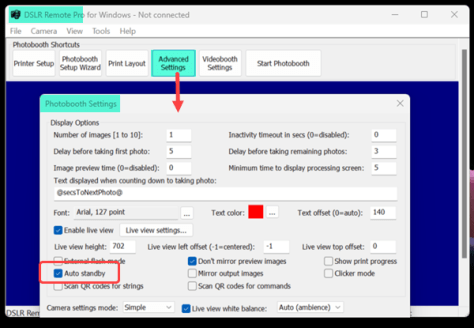
  • Check Auto standby in Advanced settings
  • Add a suitable  graphic called welcome.jpg to the PhotoboothImages folder
  • Add the touchscreen action to switch from standby to your Ready screen

Check Auto standby

Auto standby returns the booth to the Welcome screen instead of the Ready screen at the end of each session.

Start DSLR Remote Pro and click on Advanced Settings. Check Auto standby and save your changes.

Checking Auto standby in Breeze DSLR Remote Pro

Add your welcome.jpg

Make your graphic a jpg image which is the same size as your screen (in pixels). Call the graphic requesting consent to use the photos welcome.jpg and add it to your PhotoboothImages folder.

To attract attention, you can also animate the screen.  How to animate screens.

Add the touchscreen action

Add the touchscreen action Switch from standby to ready  to welcome.jpg

Using touch screen actions

Use the Ready screen ready.jpg

You can ask the same question on the ready screen instead of the standby screen.

You can also link from the ready screen to Information pages providing detailed term and conditions.

Guests clicking Yes! starts the countdown. Guests choosing No are returned to the standby screen. Guests clicking Maybe are shown information screen(s).

In the example above, ready.jpg is white with  Yes, No and Maybe buttons. (Maybe is optional and links to information screens.)

ready_overlay.png provides the question text on a transparent background so that it shows in front of the live view.

Make sure both ready.jpg and ready_overlay.jpg are the same size in pixels as the screen.

You may prefer to switch off live view in the ready screen by checking Disable live view in ready screen in Live View Settings.

Add the touchscreen actions

You need to add three touchscreen actions to the ready screen.

  1. Add action Photo start to the Yes! button
  2. Add action Switch from ready screen to standby to the No button
  3. Add action Photo info open to the Maybe button
Adding touchscreen actions to Breeze DSLR Remote Pro ready screen

Learn how to add information screens here

Use a profile menu

This option may be preferred by advanced users comfortable with profiles. If you are not familiar with profiles, use  one of the approaches above.

Build a menu profile asking May we share your photos… ?

Use

  • Yes/accept to take the guest to the ready screen of a second profile.
  • No/reject returns the guest to standby using the Switch from ready to standby action
  • Maybe takes the guest to information screen(s) as above

Before you leave…

Check everything works and save your changes before you finish.

More about guest consent

Collecting data and recording consent

Create custom surveys to collect guest data and record consent.

Survey data can be analysed, displayed in prints, and used to separate images into different folders.

Information screens

To add a detailed GDPR compliant privacy statement, terms and conditions or any other information screen(s) to your booth use DSLR Remote Pro Information screens.

Coming soon

Watch out for DSLR Remote Pro 3.19, which will introduce a new way to create simple surveys.

© Breeze Systems May 2023

BreezeBrowser Pro 1.12.4 & Downloader Pro 2.6.4 released

BreezeBrowser Pro 1.12.4 and Downloader Pro 2.6.4 were released today 24 March 2023, adding support for new Canon cameras.

BreezeBrowser Pro

BreezeBrowser Pro is a smart tool used by professional photographers to organize, cull and enhance photos.

Video thumbnails (BreezeBrowser Pro 1.12.4 filmstrip view)

What our customers say

I’m an ardent promoter of BB [BreezeBrowser Pro], it’s my beloved file selection and management tool. Adam Trzcionka

I have never encountered a photo manager program better than BreezeBrowser Pro. It does everything you could want, and is designed to be of maximum help to the user. Very few modern programs do that, and none better than BreezeBrowser Pro. Bill Ford

BreezeBrowser Pro 1.12.4

  • adds support for displaying video previews and thumbnails
  • adds support for the display of focus points from the Canon EOS R3, Canon EOS R6 Mark II, Canon EOS R7, Canon EOS R10 and Canon EOS R50
  • fixes an issue displaying portrait orientation images when linking raw+JPEG

Learn more

Downloader Pro

Often used with BreezeBrowser Pro, Downloader Pro minimises the time spent downloading and organising images on your PC.

What our customers say

… nothing can replace BBPro and DLPro for me 🙂  Jen

STILL one of my favorite all times apps. Edward Dombek (Downloader Pro user since 2006)

Downloader Pro 2.6.4

  • Adds support for Canon EOS R3, Canon EOS R6 Mark II, Canon EOS R7, Canon EOS R8, Canon EOS R10 and Canon EOS R50

Learn more

Download, Try, Buy

Both releases are a free upgrade for all registered users who purchased a license within the last 18 months. Users with older licenses will need to buy an upgrade license to use the latest versions of BreezeBrowser Pro and Downloader Pro.

Download BreezeBrowser Pro 1.12.4 and Downloader Pro 2.6.4

Buy licenses

Featured image courtesy of Canon Europe

© Breeze Systems March 2023

Breeze DSLR Remote Pro 3.18.2.1 & Photo Booth Expo

DSLR Remote Pro 3.18.2.1 release

DSLR Remote Pro 3.18.2.1 was released today, March 9th. This is a minor update, fixing issues in DSLR Remote Pro 3.18.2 where touchscreen keyboards converted all input to upper case and the program could crash when using SHIFT+Ctrl+left click to save the keyboard settings.

Photo Booth Expo 2023

2023 was our busiest Expo for years. Breeze, EventKite and Everybooth shared a stand showcasing Breeze for Windows and Breeze for iPad running on Everybooth’s lovely wooden booths. Images were uploaded to EventKite’s new  microsite and gallery.

Visitors loved  the black and white video and photos taken by DLSR Remote Pro, and were astonished by the power and speed of Breeze for iPad 3.3.

Breeze DSLR Remote Pro 3.18.2 using Canon EOS M50 Mk II

Breeze for iPads’ ability to offer built in background removal  with live view for both video and photos was a hit, as was the ability to pair the iPad with Canons’ mirrorless and DSLR cameras.


Grecia Ventura and Mai Trabue trying Breeze Booth for iPad 3.3


Thanks Grecia for sharing this image

Sharp eyed visitors may have noticed that overlays on both the DSLR Remote Pro and Breeze for iPad images vary, sharing prime position between the three businesses on the stand. Both Breeze for iPad and DSLR Remote Pro include the ability to randomly vary layouts.

Upgrade to DSLR Remote Pro 3.18.2.1 today

DSLR Remote Pro 3.18.2 is a free upgrade for all registered users who purchased DSLR Remote Pro after 9 March 2022. Customers with older licenses need to buy an upgrade license to use this release.

Download DSLR Remote Pro    Buy DSLR Remote Pro

It was a joy for Chris and I to work with Peter Leese, Susie Huges, Steve Bliesner, Owen McCrick and Ken Oelschläger on a very busy stand. Thank you all!

Thanks as well to Steve for his stunning interfaces which showcased both apps and booths to perfection, and to Grecia Ventura for kindly allowing us to use her photos.

© Breeze Systems March 2023